DisplayPort Versions Explained: 1.2, 1.4, 2.0 and 2.1
Compare DisplayPort link rates, DSC, MST, USB-C Alt Mode, and certified cable classes so you can tell what a GPU, dock, and monitor will actually support.
The number on the port is not the whole specification
DisplayPort is a digital display connection used by graphics cards, monitors, docks, and some USB-C video outputs. The version identifies a generation of the standard, while the supported link rate tells you more about available bandwidth. A DisplayPort 2.1 device does not necessarily run at UHBR20. VESA notes that devices can receive newer DisplayPort features without implementing the highest optional UHBR rate.
The right question is: what link rate do the source and display both support, and what happens between them? That includes the cable, a dock or hub, the number of USB-C lanes used for video, and whether the devices support Display Stream Compression (DSC).
Generations and four-lane maximum raw rates
| Generation | Link rate to check | Maximum raw rate | What to remember |
|---|---|---|---|
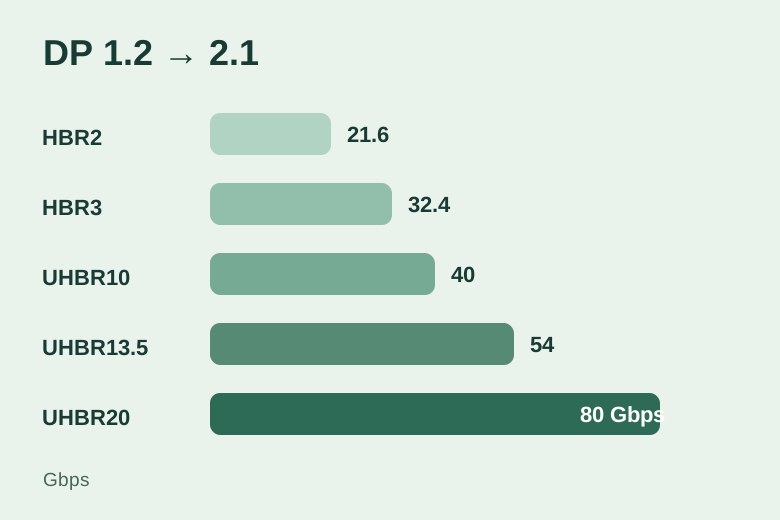
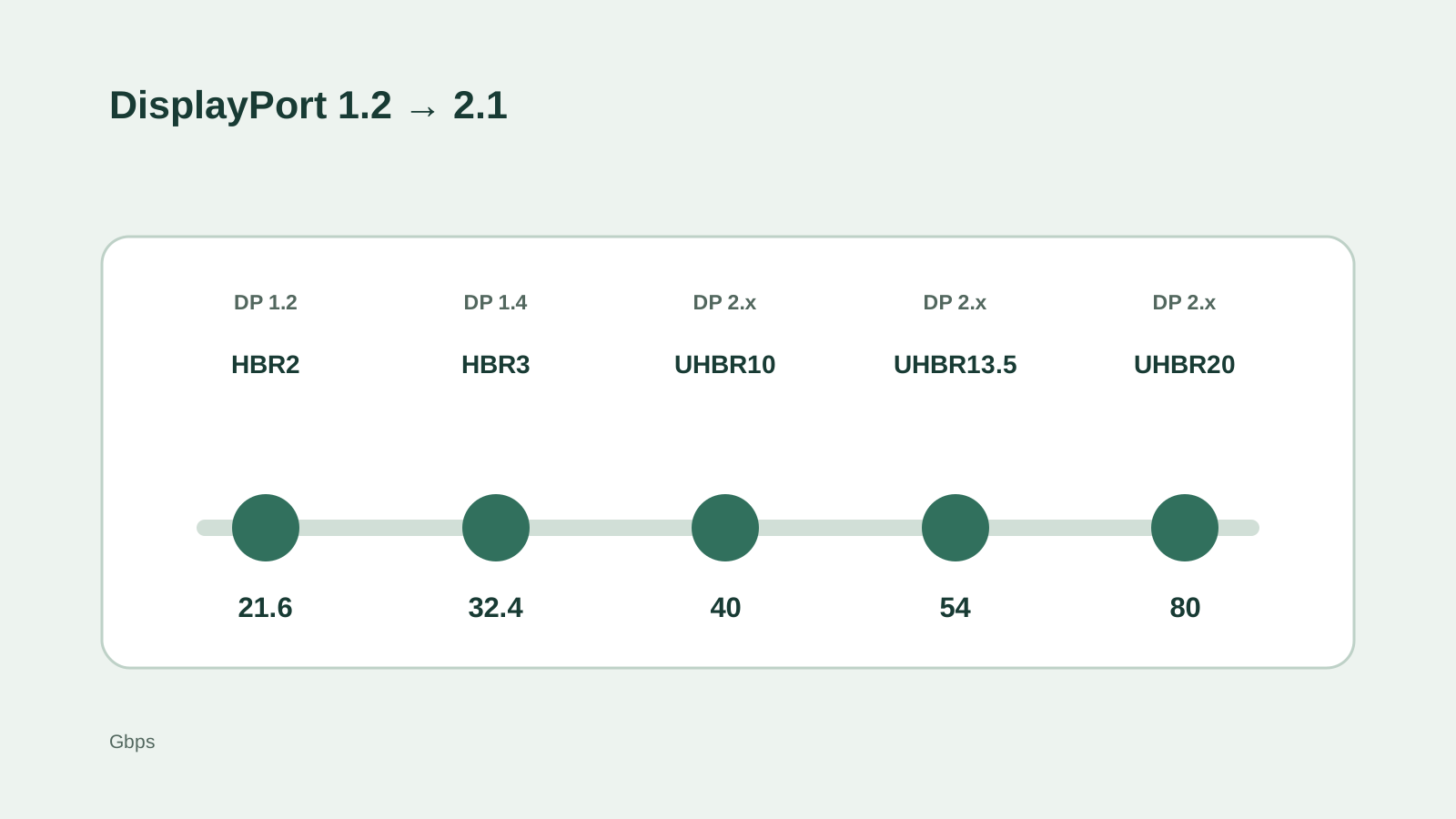
| DP 1.2 | HBR2 | 21.6 Gbps | MST support appeared in this generation |
| DP 1.4 | HBR3 | 32.4 Gbps | Adds DSC capability; does not raise HBR3 speed over 1.3 |
| DP 2.0 / 2.1 | UHBR10 / 13.5 / 20 | 40 / 54 / 80 Gbps | Check the exact UHBR rate, not just the version |
| DP 2.1b update | Depends on device | Up to 80 Gbps | DP80LL active cable option and multi-display improvements |
Raw link rates are not usable video payload. Encoding, blanking, color format, DSC and shared USB-C lanes change the real display modes available.
DP 1.2 and 1.4: useful, but check the mode table
DisplayPort 1.2 introduced the HBR2 link rate, with a four-lane maximum raw rate of 21.6 Gbps. It also brought Multi-Stream Transport (MST), which can carry multiple display streams on one supported link. That does not mean any laptop can drive an unlimited chain of displays: the GPU, operating system, hub or monitors, and shared bandwidth still set the limit.
DisplayPort 1.4 uses the HBR3 rate, up to 32.4 Gbps raw over four lanes, and introduced VESA Display Stream Compression support within the DisplayPort specification. DSC reduces the data needed for demanding modes and is designed to be visually lossless. If a monitor advertises an unusually high resolution and refresh rate over DP 1.4, check whether it relies on DSC and whether the source supports it too.
DP 2.0 and 2.1: UHBR10 is not UHBR20
The DP 2.x family adds three Ultra-High Bit Rate (UHBR) options. Four-lane UHBR10 is 40 Gbps raw, UHBR13.5 is 54 Gbps, and UHBR20 is 80 Gbps. The headline “DisplayPort 2.1” does not distinguish among these rates. VESA’s cable labels help: DP54 covers UHBR10 and UHBR13.5, while DP80 is intended for UHBR20-capable connections.
DisplayPort 2.1 and its updates improve the ecosystem around the DP 2.0 rate family, including cable requirements and USB-C/USB4 interoperability. VESA describes DP 2.1b as adding the DP80LL active-cable option, which supports UHBR20 over a longer run, and improved support for multi-display configurations. Those are specification capabilities; check certified products and the exact GPU and monitor modes before planning a purchase around them.
DSC and MST solve different problems
DSC compresses the video stream so that a higher resolution, refresh rate or color depth may fit across a given link. It is not the same as dropping from 4:4:4 to a lower chroma format. When a mode needs DSC, both ends of the connection must support the required configuration. The monitor’s own manual is the best place to check whether a listed mode uses it.
MST carries more than one display stream over a supported DisplayPort connection. It is useful for a daisy chain or an MST hub, provided the source, intermediate hardware and displays support the arrangement. The streams share the connection’s bandwidth; adding another screen may lower the modes available to the existing screens.
USB-C and docks: the connector can hide the limit
A USB-C socket does not automatically provide video. For a laptop-to-monitor connection, first verify DisplayPort Alt Mode or another supported video path on that exact laptop port. Then check the link rate and whether the dock uses two or four lanes for video. A dock that keeps lanes for high-speed USB data can leave less bandwidth for displays.
For a 4K high-refresh monitor, a direct connection from the GPU to the monitor is a useful comparison if a dock tops out at 60Hz. When shopping for an adapter or KVM, inspect its own supported resolution, refresh rate, DSC and VRR notes. A fast cable cannot restore a mode that the dock never outputs.
How to choose a cable and verify the result
Choose a VESA-certified cable whose rating covers the link rate used by both devices. DP54 is designed for UHBR13.5 and lower UHBR rates; DP80 covers UHBR20. VESA also describes a DP80LL active-cable option for longer UHBR20 runs. On older HBR links, the device-specific mode and cable quality still matter. Check VESA’s certified-product database when the cable rating is central to your setup.
After connecting, set the intended resolution and refresh rate in the operating system and verify the monitor’s input information screen. If the expected mode is missing, remove the dock or adapter temporarily, try the other video input, and inspect the GPU and monitor manuals. For choosing between a DP and HDMI input, use the companion HDMI vs DisplayPort guide; for choosing the screen specification itself, use our resolution-versus-refresh-rate guide.
Sources and calculation references
- VESA: DisplayPort FAQ
DP 2.1b, MST, UHBR and USB-C details; checked September 2026.
- VESA: DisplayPort 1.4 release
HBR3 link rate and introduction of DSC into DisplayPort.
- VESA: DisplayPort 1.2 release
HBR2, 21.6 Gbps and MST generation.
- VESA: UHBR rates and DP cable certification
UHBR10, UHBR13.5, UHBR20, DP40 and DP80 classes.
- VESA: DP54 cable update
DP54 support for UHBR10 and UHBR13.5.
- VESA: DisplayPort Alt Mode on USB-C
Two- and four-lane video configurations with simultaneous USB data.
FAQ
Does every DisplayPort 2.1 port support 80 Gbps?
No. Check whether the source and display specify UHBR10, UHBR13.5 or UHBR20. The version name alone does not establish the maximum link rate.
Does DisplayPort 1.4 need DSC for every 4K monitor?
No. DSC becomes relevant for some demanding combinations of resolution, refresh rate and color format. Read the monitor’s mode table rather than assuming all 4K modes use compression.
Can I connect two monitors through one DisplayPort output?
Possibly, if the source and hub or daisy-chain monitors support MST and the combined modes fit within the available bandwidth. Verify the complete setup, including the operating system.
Related guides
Connections and display setup
HDMI vs DisplayPort: Which Connection Should You Use?
Connections and display setup
HDMI Versions Explained: 1.4, 2.0, 2.1 and 2.2
Monitor guides
What GPU Do You Need for 1080p, 1440p, and 4K Gaming?
Monitor guides
Monitor Resolution Guide: 1080p, 1440p, and 4K Picks
Monitor guides
Resolution vs Refresh Rate: 4K 60Hz or 1440p 144Hz?